
Introduction
At AC Mobility, we are committed to making public transport payments more convenient and accessible for passengers. The Tap&Go App is designed to help you manage your Tap&Go cards, top up your balance, check available funds and keep track of your transactions, all from your smartphone.
Since Tap&Go was introduced in Rwanda in 2015, it has facilitated over 28 million passenger journeys and issued more than 3 million cards. These figures reflect Tap&Go’s overall operations and our continued efforts to make public transport payments more convenient for passengers while safeguarding their money.
Whether you are a new or existing Tap&Go cardholder, this guide walks you through how to download the app, create an account and use its key features.
1. Download the Tap&Go App
The Tap&Go App is available on Android and iOS devices. You can download it from the official app stores using the links below:
- Android: Download Tap&Go from Google Play Store
- iPhone: Download Tap&Go from the App Store
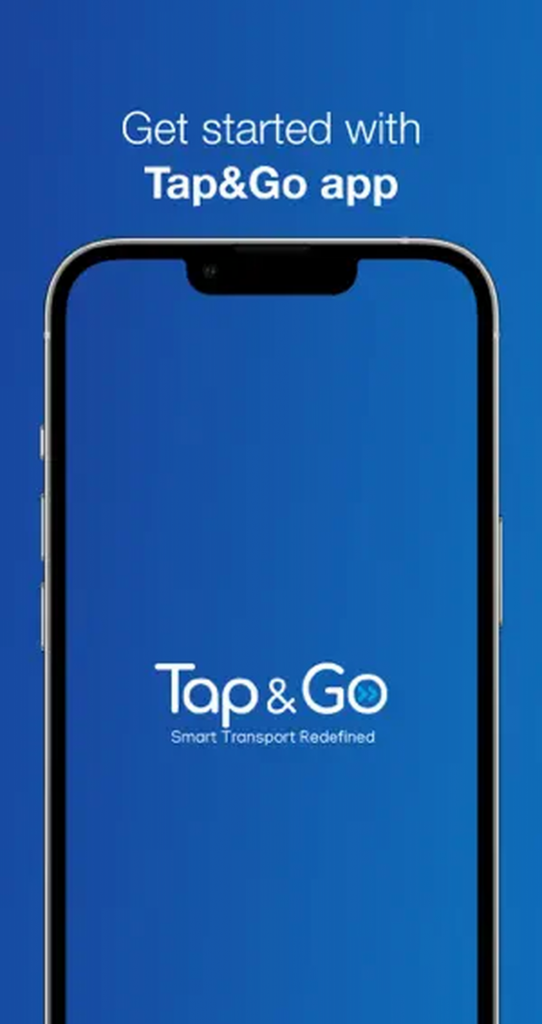
Once the download is complete, open the application to begin setting up your account.
2. Open the App and Create Your Account
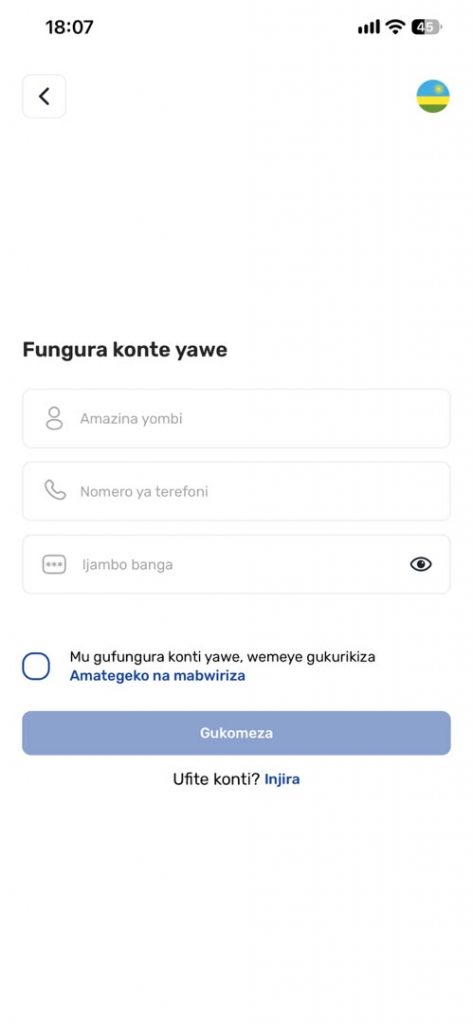
After installing the Tap&Go App, open it on your smartphone and select the option to create an account.
You will be required to provide the following details:
- Full name: Enter your full name.
- Phone number: Provide your active phone number.
- Password: Create a password containing at least 6 characters.
Once you have entered these details, click Continue.
You will receive an OTP (One-Time Password) by SMS. Enter the OTP in the app to verify your phone number and proceed.
Next, you will be prompted to create a 5-digit PIN. This PIN will be used to access your Tap&Go account, so choose one you can remember and keep it private.
After creating your PIN, you will be taken to a page where you can select your preferred language and routes. These options are optional. You can make your selections or skip this step by clicking Do This Later.
Once you complete or skip this step, you will be directed to the app’s homepage.
3. Explore the Homepage
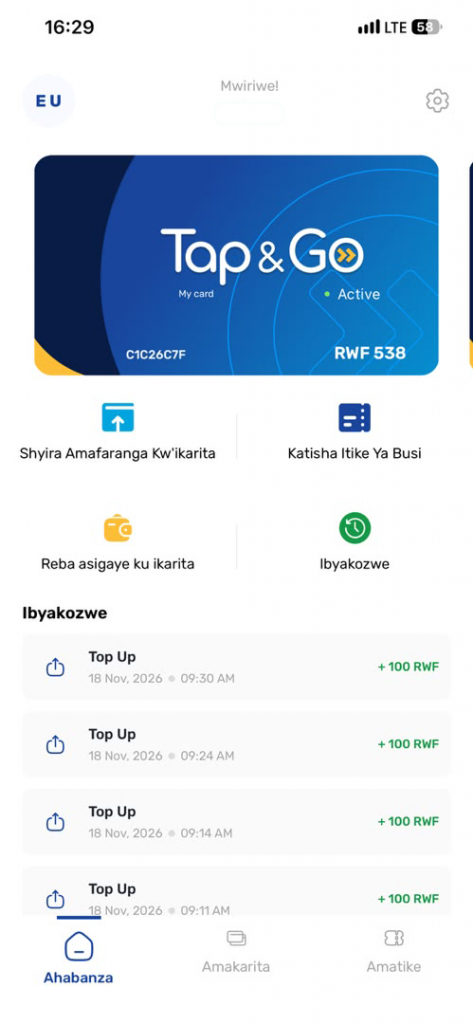
The Tap&Go App homepage gives you an overview of your registered cards and their available balances.
All Tap&Go cards registered under your account will appear on the homepage, allowing you to see the cards linked to your account and how much money is available on each one.
From the homepage, you can also access the app’s main services, including:
- Top Up: Add money to your Tap&Go card.
- Check Balance: View the available balance on your card.
- Transactions: Review your transaction history.
- My Cards: View the Tap&Go cards registered under your account.
4. Top Up Your Tap&Go Card
You can add money to your Tap&Go card directly through the app.
To top up your own card:
- Open the Tap&Go App.
- Select the Top Up option.
- Choose the card you want to top up.
- Enter the amount you wish to add.
- Follow the payment instructions to complete the transaction through Mobile Money.
- Wait for the payment confirmation.
Once the top-up is successful, you will receive a MoMo confirmation message confirming that your payment has been processed.
Keep the confirmation message for your records.
5. Top Up Someone Else’s Tap&Go Card
The app also allows you to add money to another person’s Tap&Go card. This is useful when you want to help a family member, friend or another passenger top up their card.
To do this:
- Open the Tap&Go App.
- Select the Top Up option.
- Choose the option to top up another card.
- Enter the required card details.
- Enter the amount you wish to add.
- Follow the payment instructions to complete the transaction through Mobile Money.
After a successful payment, you will receive a MoMo confirmation message confirming that the payment has been processed.
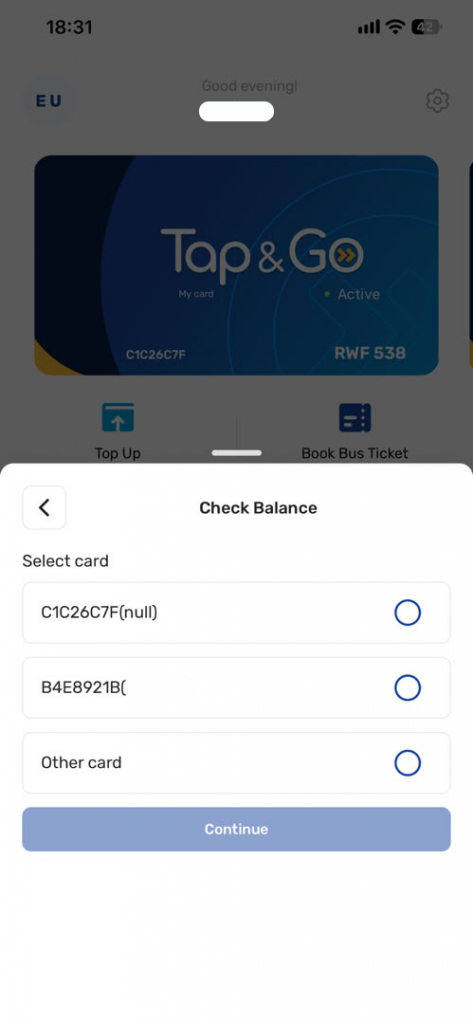
6. Check Your Tap&Go Card Balance
You do not need to visit a sales point to check how much money remains on your card.
The Tap&Go App homepage displays all the cards linked to your account, together with their available balances. This allows you to see how much money is available on each card at a glance.
You can also check your balance by following these steps:
- Open the Tap&Go App.
- On the homepage, select Check Balance.
- View the available balances of your cards.
This helps you keep track of your available funds and know when you need to top up before your next journey.
7. View Your Transaction History
The Tap&Go App allows you to review your transactions and keep track of your card activity.
To view your transaction history:
- Open the Tap&Go App.
- Select Transaction history.
- Review the transactions displayed.
Checking your transaction history can help you keep track of your top-ups and other recorded card activity.
8. No Smartphone or Internet Access? Use *532#
If you do not have a smartphone or access to the internet, you can use the *532# USSD service for supported Tap&Go services, including card top-ups and balance-related services.
To use the service:
- Dial *532# on your mobile phone.
- Follow the instructions displayed.
- Select the relevant supported service.
- Follow the payment instructions where applicable to complete your transaction through Mobile Money.
9. Need Assistance?
If you experience difficulties using the Tap&Go App, try these basic troubleshooting steps before contacting customer support:
- Check your internet connection: Make sure your phone is connected to a stable internet network.
- Restart the app: Close the Tap&Go App completely and reopen it.
- Restart your phone: Switch off your device and turn it back on, then try accessing the app again.
- Reinstall the app: If the problem persists, uninstall the Tap&Go App and download it again from the Google Play Store or Apple App Store.
If the issue continues after trying these steps, or if you have questions about your card, contact our customer support team for assistance.
- Toll-free: 6655
- Additional support contact: 0780 139 126
Our team is available to help answer your questions and provide guidance on using Tap&Go services.
Note: Before uninstalling the app, make sure you can access the phone number linked to your account so you can complete any verification required when signing in again.
AC Mobility builds the systems behind connected public transport across Rwanda.
Start a conversation ↗